
3D Printing
From SketchUp Screen to 3D Print: Your Complete, No-Fail Guide
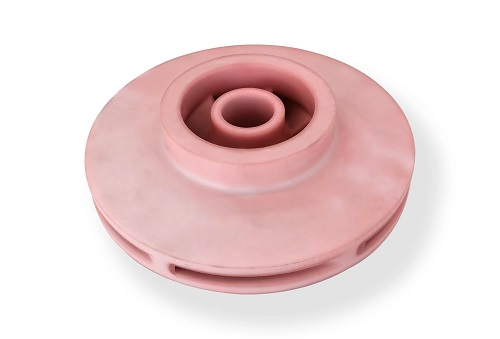
Ever spent hours crafting the perfect model in SketchUp, only to hit a wall when it’s time to make it real? You’re not alone. Many architects, product designers, and passionate hobbyists reach a point where they ask: “I’ve designed it… but can I actually 3D print my SketchUp model?” The straightforward answer is yes, absolutely.
Key takeaways
- Before you even think about exporting, your model must meet the fundamental rules 3D printers live by.
- Follow this linear process. Skipping steps is the fastest route to a pile of plastic spaghetti instead of your masterpiece.
- Architectural facades, detailed figurines, or complex mechanical assemblies need extra care.
- In rapid prototyping, we see SketchUp models daily. The single biggest reason for failure is rushing the preparation stage.
What Are the Non-Negotiable Standards for a Printable SketchUp Model?
Before you even think about exporting, your model must meet the fundamental rules 3D printers live by. Slicing software—the program that translates your model into printer instructions—is incredibly literal. It can’t guess your intent. These standards ensure the software interprets your design correctly.
Is Your Model “Watertight” and “Manifold”?
These are the two most critical terms in 3D printing prep. A watertight model is like a sealed, air-tight balloon: it has no holes, gaps, or missing faces. Every edge is connected to exactly two faces, defining a clear inside and outside. A manifold model has no contradictory geometry—no faces intersecting weirdly, no edges shared by more than two faces, and no internal stray surfaces.
- How to Check & Fix in SketchUp: The absolute best tool for this is the free Solid Inspector 2 plugin. Install it from the SketchUp Extension Warehouse. With one click, it scans your model and highlights problems with color-coded markers (e.g., blue for missing faces, red for bad edges). It’s a game-changer.
- Common SU Flaws to Hunt Down: Missing Faces: That one wall of your cube you forgot to fill. Tiny Gaps: Imperceptible lines between surfaces caused by imprecise snapping. Non-Manifold Edges: Often found where lines intersect incorrectly, like an interior edge that shouldn’t exist.
Are the Walls Thick Enough to Be Printed?
A 3D printer has physical limits. If you design a wall that’s thinner than the printer’s nozzle or laser can reliably handle, it will either fail to print or produce an extremely fragile part.
- The Rule of Thumb: For common FDM printers (using PLA/PETG), aim for a minimum thickness of 0.8mm to 1.0mm. For high-detail SLA/resin printers, you can go down to 0.4-0.5mm, but thinner features become brittle.
- How to Check: Use SketchUp’s Tape Measure tool to probe thin sections. For complex internal structures, use the Section Plane tool to take a cross-section and inspect.
Is Your Model the Right Size and Scale?
This is a classic beginner mistake. Designing in inches or at an arbitrary scale will result in a print that’s comically huge or microscopic.
- The Fix: Always design in millimeters for 3D printing. Set this in Window > Model Info > Units. Then, use the Tape Measure tool to verify your model’s overall dimensions fit within your printer’s build volume (e.g., 220x220x250mm for a Creality Ender 3).
- Pro Tip: If your model is too large, don’t scale it down and lose detail. Split it into logical components using the Group tool, print the parts, and assemble them post-print.
| Standard | Why It Matters | How to Verify in SketchUp |
|---|---|---|
| Watertight Geometry | The slicer must define a clear interior volume. Gaps cause missing sections or print failures. | Run the Solid Inspector 2 plugin. It visually flags all gaps and holes. |
| Manifold Geometry | Prevents confusing geometry that leads to slicing errors and garbled prints. | Solid Inspector 2 also checks for non-manifold edges and overlapping faces. |
| Minimum Wall Thickness | Ensures the printer can physically create the feature with strength. | Use the Tape Measure and Section Plane tools to measure the thinnest parts. |
| Correct Scale & Size | Guarantees your print fits the printer and comes out at the intended real-world size. | Set units to millimeters in Model Info. Check dimensions against your printer’s specs. |
What Is the Step-by-Step Workflow to Print a SketchUp Model?
Follow this linear process. Skipping steps is the fastest route to a pile of plastic spaghetti instead of your masterpiece.
Step 1: Repair and Validate Your Model
This is where you apply the standards from above.
- Install & Run Solid Inspector 2. After installing, click its icon and select “Check Model.”
- Methodically Fix Issues. The plugin guides you. Click its flags to select problematic geometry. For missing faces, use the Line tool to trace the gap’s perimeter, which will automatically create a face. For stray edges or duplicates, simply select and delete them. Re-run the check until you see the glorious “Model is Solid” message.
- For Complex Models: If you have an intricate architectural model with hundreds of tiny flaws, consider exporting an STL at this stage and using a dedicated repair tool like Meshmixer or Netfabb. Their “Auto-Repair” functions can be faster for bulk fixes.
Step 2: Export to a 3D Printing Format
SketchUp can export to two main formats suitable for printing.
- STL (.stl) – The Universal Standard: This is what 95% of printers use. It translates your model into a mesh of triangles. Process: Go to File > Export > 3D Model. Critical Settings: In the options, set Units to Millimeters. For Resolution, choose Medium or High. “Low” will make your model look faceted and blocky.
- OBJ (.obj) – For Color/Texture: Use this if you’ve applied colors in SketchUp and are using a printer that can interpret them (some resin printers). It also preserves material groups.
Step 3: Slice the Model for Your Printer
This is where your design meets real-world printing parameters. You’ll use software like Ultimaker Cura or PrusaSlicer (both free).
- Import Your STL into the slicer.
- Select Your Printer and Material (e.g., Creality Ender 3, PLA).
- Adjust Key Settings: This is the heart of print quality. Layer Height: 0.2mm is a great balance of detail and speed for FDM. Infill Density: 15-20% for decorative pieces, 30-50% for functional parts. Support Structures: Enable for overhangs steeper than 45 degrees. The slicer will auto-generate removable supports. Print Speed: 50-60 mm/s is a reliable starting point for PLA.
- Slice and Preview: The software will generate a layer-by-layer preview. Scrutinize this. Look for areas where supports are missing or parts are floating in mid-air.
Step 4: Print and Post-Process
You’re on the home stretch!
- Prep the Printer: Ensure the build plate is clean and level. Heat the nozzle/bed to the correct temps for your material.
- Transfer & Print: Send the sliced file (G-code) to your printer via SD card or network. Watch the first layer—it’s the most critical for adhesion.
- Post-Processing: For FDM (PLA/ABS): Carefully remove supports. Sand with progressively finer grit sandpaper (starting at 220, moving to 400+). You can prime and paint for a finished look. For SLA (Resin): Wear gloves! Rinse the part in isopropyl alcohol to remove uncured resin. Then, cure it under a UV light to fully harden it.
How Do You Handle Complex or Detailed SketchUp Models?
Architectural facades, detailed figurines, or complex mechanical assemblies need extra care.
- Simplify Ruthlessly: That finely detailed 0.3mm window mullion won’t print on an FDM printer. Simplify or exaggerate details to be at least 0.8mm. Ask yourself: “Is this detail essential to the form or function?”
- Split and Conquer: Don’t force a massive model onto a small build plate. Use SketchUp to split your model into interlocking parts. Design alignment pins or holes to make gluing easy later.
- Choose the Right Tech for the Job: An FDM printer is great for large, strong, functional parts. A resin (SLA) printer is superior for miniatures, jewelry, and models with intricate, delicate details. Match your technology to your design’s needs.
How to write a spec that gets priced correctly
A drawing is a contract. If it leaves a number open, the shop fills that number in with its own default. The default is rarely the one you had in mind. Put these five lines on every RFQ and most of the back-and-forth disappears before it starts.
- File format and units, with the model exported in millimetres
- Process and material grade, not a trade name
- Critical features and the tolerance each one needs
- Surface finish and the faces it applies to
- Quantity for the pilot build and for the year
The point is not paperwork. Each line removes a decision the shop would otherwise make for you. A complete RFQ comes back priced. An incomplete one comes back guessed.
What actually drives the price
Buyers usually push on material because it is the line they can see. In practice the material is rarely the biggest number on a quote. These five lines decide most of it:
- build volume and orientation
- layer height and support structure
- material grade and colour
- post-processing and hand finishing
- quantity per build plate
Ask for the quote split by line. A supplier who cannot break it down is guessing, and you will pay for the guess. The line you can usually renegotiate is the tolerance band, not the raw material.
Problems you will meet, and the fix
Every process has a failure mode it prefers. The same four show up again and again on this kind of work, and none of them are mysteries once you know what to look for.
- Warping on long flat faces where the part lifts off the plate
- Layer lines showing through a cosmetic surface
- Support scars on a mating face nobody flagged
- Dimensional drift on thin walls after cooling
Catch the fault on the first part, not the hundredth. A first-article check costs an hour. A bad batch costs the whole order. Write the check into the purchase order so nobody has to remember it.
What to check on the first article
The first article is the cheapest inspection you will ever buy. Use it properly and the rest of the run becomes boring, which is exactly what you want.
- Every dimension on the drawing, with the measured value written beside it.
- The material certificate, matched to the heat or lot number on the parts.
- The finish against the sample you approved, under the same light.
- Fit against the mating part, assembled rather than measured.
- Packaging, because parts that arrive damaged were never in tolerance.
Check in this order: datums, then mating features, then cosmetic faces. If the datums are wrong, every number after them is noise. Keep the report on file. When a problem shows up in month six, that document is the only thing that tells you what changed.
How to compare two quotes fairly
Two numbers are not comparable unless the scope matches. Line them up before you decide, because a low number with three gaps is not a low number.
Same drawing, same material, same finish, same inspection. Anything else is a different job wearing the same part number. Then look at what each quote leaves out. Freight, packaging, certificates and tooling are the usual gaps.
Ask each supplier to state their assumptions in writing. The one who does is usually the one who has run the process before.
Scaling from one part to a batch
The first part teaches you the process. The hundredth teaches you the process cost.
Watch three things as volume grows: setup amortisation, tool wear, and how much hand work the finish still needs. If the unit price barely moves between ten and a hundred, the cost sits in material or in hand work, not in setup. Ask which, because only one of them is negotiable.
Lead time behaves the same way. A one-off is scheduled around other jobs. A repeat order is scheduled around your forecast. Give the shop a forecast and the lead time gets shorter, not longer.
A Professional Perspective: Best Practices from the Field
In rapid prototyping, we see SketchUp models daily. The single biggest reason for failure is rushing the preparation stage. Investing 30 minutes in validation with Solid Inspector 2 saves hours of wasted print time and material.
For professional or high-accuracy parts, we often take an extra step: importing the repaired STL into a more mesh-focused tool like Blender or Fusion 360 for final topology optimization and precise wall thickness assurance. This is especially crucial for parts that must mate with other components.
The core principle is this: SketchUp is an excellent design tool. Treat the printing preparation as an equally important engineering phase. A methodical, patient approach guarantees your fantastic digital design becomes an equally fantastic physical object.
3D printing your SketchUp models is not just possible; it’s a highly rewarding process that closes the loop between idea and reality. The key lies in understanding that preparation is production. By ensuring your model is watertight and manifold, scaling it correctly, and carefully slicing it for your specific printer, you transform potential frustration into consistent success. Embrace the checklist, leverage powerful free tools like Solid Inspector 2 and Cura, and start with simple test prints. Soon, you’ll be turning your most ambitious SketchUp creations into physical reality with confidence.
FAQ: Your SketchUp 3D Printing Questions Answered
Q: Can I 3D print the textures (like brick or wood grain) I apply in SketchUp?
A: Not directly. SketchUp’s textures are visual maps, not 3D geometry. To get physical texture, you must model it using the Push/Pull tool to create actual surface variations, or add texture during post-processing through techniques like sand blasting or specialty painting.
Q: My exported STL file looks blocky and faceted. What went wrong?
A: This is due to the export resolution setting. When exporting the STL from SketchUp, choose a “High” or “Very High” resolution. This increases the polygon count, making curves appear smooth. Be aware that this will also create a larger file size.
Q: The slicer software says my model is “non-manifold” even after using Solid Inspector 2. What now?
A: Solid Inspector 2 is excellent but can sometimes miss deeply nested issues. Your next step is to use a dedicated mesh repair program. Import your STL into Meshmixer, use its “Analysis > Inspector” tool, and click “Auto Repair All.” This is a more robust fix for complex mesh problems.
Q: I’m using the free SketchUp Make version. Can I still prepare models for 3D printing?
A: Yes, you can. The core tools—drawing, measuring, grouping—are all there. You can install the Solid Inspector 2 plugin in SketchUp Make, which is the most critical part. For exporting, you may need to use a free online converter or a separate free program to convert your SketchUp file to STL, as the STL export feature is part of SketchUp Pro.
Our solution for From SketchUp Screen
YiguProto runs 3D printing in house, from a single prototype to a production batch. We quote the process, the material and the finish as separate lines, so you can see where the money goes instead of arguing with one number.
Send a STEP file or a drawing and you get a DFM report in one to two business days. It flags the features that add cost and the features that will not hold tolerance on the process you picked.
Every order ships with an inspection report on the features you call out. If a part misses, we make it again. Ready to price a part? Start with a free quote and DFM review, or read more about our 3D printing. You can also talk to an engineer before you commit to a drawing.
FAQ about From SketchUp Screen
How much does From SketchUp Screen cost?
Price comes from five lines: material, machine or tool time, setup, finishing and inspection. The material itself is usually the smallest of them. Send a drawing and we will split the quote so you can see which line is doing the damage.
Can From SketchUp Screen be made in small quantities?
Yes, and small quantities are where a good supplier earns the next order. Setup dominates the price at low volume, so the cheapest route is usually the one with the fewest operations, not the cheapest material.
What material should I specify?
Specify by standard, not by trade name. A trade name can change under you between two orders; a standard number cannot. Then add the one property that actually decides the part, whether that is strength, heat resistance or chemical exposure.
How do I compare two quotes fairly?
Match the scope first: same drawing, same material, same finish, same inspection. Then read the exclusions. Freight, tooling and certificates are the usual gaps, and a low number with three gaps is not a low number.
How long does a first article take?
Usually a few business days once the drawing is frozen, and longer if tooling is involved. The date we give you is the date we confirm in writing, not the date we hope for.
What files do you need in order to quote?
A STEP file plus a PDF drawing that carries the same revision letter. The model carries the geometry and the drawing carries the intent. When the two disagree, the shop picks one, and it is never the one you meant.
The short version
From SketchUp Screen rewards the buyer who reads the data sheet and the drawing together. Pick the option for the property that matters, not for the price per kilo.
Tighten only what mates. Test a sample before the run. Then let the process do the rest.