
3D Printing
How to Turn 3D Design Ideas Into Real Printed Objects?
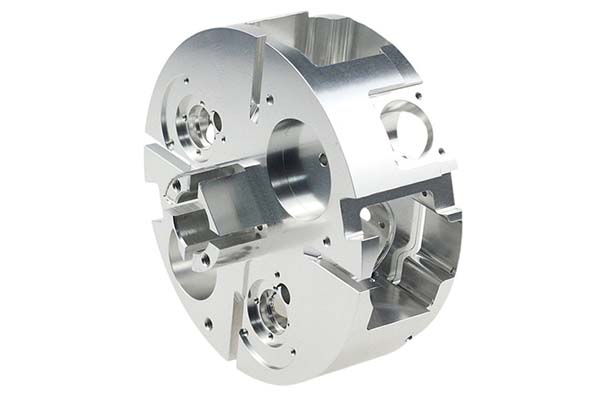
Today, turning a thought in your head into a real, touchable object feels like a superpower. 3D design and print make this possible. It’s a full process: start with a digital idea, end with a physical item built layer by layer. This guide teaches you everything—from your first design click to holding your finished creation. It connects design and printing, so you can move through each step with confidence.
Key takeaways
- Many people see 3D design and printing as separate. But they work together like two parts of one machine.
- Your journey from idea to object starts digitally. This phase is about creating a printable 3D model.
- You have a great digital model. Now, how to get it to the printer? Slicing is the missing link.
- With a sliced G-code file, you’re ready for hardware. This phase uses printers and materials.
Are Design and Print Connected?
Many people see 3D design and printing as separate. But they work together like two parts of one machine. A great physical object starts with a strong digital design. Understanding their link is your first key step.
One Unified Process?
3D design and print is one flowing workflow. It’s easy to focus only on the printer. But the process starts on a computer screen.
Think of it as brain and hands: design is the brain, printing is the hands.
Design (The Brain): This is your digital plan. It’s like a blueprint for a building. It shows every curve, surface, and measurement.
Save this model as an STL or 3MF file. Every choice here directly impacts your final print.
Print (The Hands): This is where your digital plan becomes real. The 3D printer follows your design to build layer by layer.
It melts plastic or hardens resin—all based on your pre-made digital guide.
Why Do They Depend?
Even the best printer can’t fix a bad design. A model with thin walls, holes, or impossible overhangs will fail to print. A successful print always starts with careful design.
Phase 1: Digital Design?
Your journey from idea to object starts digitally. This phase is about creating a printable 3D model. Learn basics and pick the right tools to avoid frustration and failed prints.
Pick the Right Software?
No single “best” software exists. The right tool depends on your goals, skill, and project type. Group options by user level to choose easily.
| Software | Best For | Difficulty | Cost | Key Feature |
|---|---|---|---|---|
| TinkerCAD | Beginners, simple shapes | Very Easy | Free | Browser-based, shape combination |
| Fusion 360 | Mechanical parts, prototypes | Medium | Free (Personal) | Parametric modeling, design history |
| Blender | Organic shapes, art models | Hard | Free/Open Source | Powerful mesh sculpting |
| SolidWorks | Professional engineering | Very Hard | High | Advanced testing, industry standard |
Key Design Rules?
You don’t need to be a pro to design for 3D printing. But you must know these critical rules.
- Watertight/Solid Models: Your model’s surface must have no holes. A non-solid model confuses the printer. Slicers need clear inside/outside lines.
- Wall Thickness: Every printer/material has limits. For FDM, aim for at least 1mm walls. Thin walls break or don’t print at all.
- Overhangs & Supports: Printers build from the bottom up. Use the 45-Degree Rule—steeper overhangs need supports. No supports = sagging or failure.
- Tolerances: Add 0.2-0.4mm gaps for moving parts. A 10mm peg won’t fit a 10mm hole. Bad tolerances = stuck or loose parts.
Phase 2: Connect Design & Print?
You have a great digital model. Now, how to get it to the printer? Slicing is the missing link. It translates your design into printer-friendly instructions.
What Does a Slicer Do?
A slicer is digital-to-physical translator software. It cuts your STL/3MF model into thin layers. Then it creates G-code—printer step-by-step instructions.
Top free slicers: Ultimaker Cura, PrusaSlicer, Bambu Studio. Focus on 3 key settings as a beginner.
- Layer Height: 0.2mm is a good start. Smaller (0.12mm) = smoother, slower. Larger (0.28mm) = faster, more visible layers.
- Infill: 15-20% is enough for most uses. Grid/honeycomb patterns work best. 100% = waste of time/material.
- Supports: Slicers auto-add supports for steep overhangs. Break them off after printing.
Slicing Workflow?
Follow these simple steps to slice your model:
- Import your STL/3MF file into the slicer.
- Position the model on the virtual build plate for stability.
- Adjust layer height, infill, and supports.
- Click “Slice” to generate G-code.
- Export G-code to SD card or send to your printer.
Pre-Print Checklist?
A final check saves you time and material. Run through this before hitting “print.”
- Position: Lay tall/thin models flat. Minimize overhangs to cut support needs. We once failed a tall print upright—laying it flat fixed it.
- Size: Double-check measurements. Ensure it’s not imported at the wrong scale (inches vs. mm).
- First Layer Sticking: Add a brim/raft for small-footprint models. They boost surface area and adhesion.
- Slicing Preview: Scroll through layers. Look for floating parts or gaps—fix before printing.
Phase 3: Physical Printing?
With a sliced G-code file, you’re ready for hardware. This phase uses printers and materials. Know your options to pick the right tools for your project.
Common Printer Types?
Hobbyists/small businesses use two main printer types: FDM and SLA. Each has strengths and weaknesses.
| Technology | Material | Best For | Pros | Cons |
|---|---|---|---|---|
| FDM | Thermoplastic Filament | Working parts, prototypes | Affordable, wide material variety | Visible layer lines |
| SLA | Photopolymer Resin | Miniatures, high-detail models | Smooth finish, fine detail | Messy post-processing, brittle |
Choose the Right Material?
Material defines your print’s strength, flexibility, and durability. Start with these easy options as a beginner.
- PLA: Best for beginners. Biodegradable (corn starch). Easy to print, no heated bed needed. Low cost, minimal warping. Perfect for decor and early prototypes. Most hobbyists use PLA.
- PETG: Step up from PLA. More durable, heat/chemical resistant. Flexible, less brittle. Food-safe (check specs). Great for phone cases and mechanical parts.
- Standard Resin (SLA): Captures fine details. Smooth finish. Needs washing (isopropyl alcohol) and UV curing. Brittle—good for miniatures/jewelry.
How to write a spec that gets priced correctly
A drawing is a contract. If it leaves a number open, the shop fills that number in with its own default. The default is rarely the one you had in mind. Put these five lines on every RFQ and most of the back-and-forth disappears before it starts.
- File format and units, with the model exported in millimetres
- Process and material grade, not a trade name
- Critical features and the tolerance each one needs
- Surface finish and the faces it applies to
- Quantity for the pilot build and for the year
The point is not paperwork. Each line removes a decision the shop would otherwise make for you. A complete RFQ comes back priced. An incomplete one comes back guessed.
What actually drives the price
Buyers usually push on material because it is the line they can see. In practice the material is rarely the biggest number on a quote. These five lines decide most of it:
- build volume and orientation
- layer height and support structure
- material grade and colour
- post-processing and hand finishing
- quantity per build plate
Ask for the quote split by line. A supplier who cannot break it down is guessing, and you will pay for the guess. The line you can usually renegotiate is the tolerance band, not the raw material.
Problems you will meet, and the fix
Every process has a failure mode it prefers. The same four show up again and again on this kind of work, and none of them are mysteries once you know what to look for.
- Warping on long flat faces where the part lifts off the plate
- Layer lines showing through a cosmetic surface
- Support scars on a mating face nobody flagged
- Dimensional drift on thin walls after cooling
Catch the fault on the first part, not the hundredth. A first-article check costs an hour. A bad batch costs the whole order. Write the check into the purchase order so nobody has to remember it.
What to check on the first article
The first article is the cheapest inspection you will ever buy. Use it properly and the rest of the run becomes boring, which is exactly what you want.
- Every dimension on the drawing, with the measured value written beside it.
- The material certificate, matched to the heat or lot number on the parts.
- The finish against the sample you approved, under the same light.
- Fit against the mating part, assembled rather than measured.
- Packaging, because parts that arrive damaged were never in tolerance.
Check in this order: datums, then mating features, then cosmetic faces. If the datums are wrong, every number after them is noise. Keep the report on file. When a problem shows up in month six, that document is the only thing that tells you what changed.
How to compare two quotes fairly
Two numbers are not comparable unless the scope matches. Line them up before you decide, because a low number with three gaps is not a low number.
Same drawing, same material, same finish, same inspection. Anything else is a different job wearing the same part number. Then look at what each quote leaves out. Freight, packaging, certificates and tooling are the usual gaps.
Ask each supplier to state their assumptions in writing. The one who does is usually the one who has run the process before.
Scaling from one part to a batch
The first part teaches you the process. The hundredth teaches you the process cost.
Watch three things as volume grows: setup amortisation, tool wear, and how much hand work the finish still needs. If the unit price barely moves between ten and a hundred, the cost sits in material or in hand work, not in setup. Ask which, because only one of them is negotiable.
Lead time behaves the same way. A one-off is scheduled around other jobs. A repeat order is scheduled around your forecast. Give the shop a forecast and the lead time gets shorter, not longer.
How to read a supplier's quote
A quote is a short document with a long shadow. Four things in it decide whether the job runs smoothly, and only one of them is the price.
- The scope line. It should name the process, the material and the finish, not just the part.
- The tolerance basis. General tolerance or the drawing, and which standard it follows.
- The exclusions. Tooling, freight, certificates and inspection are the usual omissions.
- The validity date. Material prices move, and an open-ended quote is a promise nobody can keep.
Read the exclusions before you read the total. A quote that leaves out tooling is not cheaper. It is a quote for a different job.
What to send with the first order
The first order sets the pattern for every order after it. Send a complete package once and the shop files it, and the second order takes a fraction of the time.
- A STEP or native model plus a PDF drawing carrying the same revision letter.
- The material callout by standard number, not by trade name.
- The finish and the exact faces it applies to.
- Any test the part must pass: fit, seal, drop, salt spray, dielectric.
- A contact who can answer a question inside one working day.
Then write down what was agreed. An email that confirms the material, the finish and the date is worth more than a longer purchase order that leaves them open.
When this is the wrong choice
A good supplier tells you when the process does not fit. These are the cases where we say so.
- The volume is so low that setup costs more than the parts are worth.
- The tolerance is tighter than the process can hold without a second operation.
- The geometry cannot be made without a tool feature that will not pay back.
- The material you need is not available in the form the process requires.
- The schedule is shorter than the tooling or setup time, and nobody has said so yet.
None of these are refusals. They are reasons to look at a different route, and the earlier that conversation happens the cheaper it is. The most expensive mistake in manufacturing is a process chosen before the question was understood.
Planning the ramp from prototype to production
The gap between one good part and a thousand identical ones is a plan, not a machine. Three decisions close it.
First, freeze the design. Every change after tooling starts is a re-cut, and re-cuts are where schedules go. Second, decide the inspection level. A prototype is checked by eye; a production part is checked against a report. Third, agree the change process in writing, including who pays for it.
Write the ramp down as dates and owners, not as intentions. A ramp plan with three names and three dates is worth more than a page of good intentions.
Real Project: Custom Phone Stand?
Theory is good, but practice builds confidence. Let’s design and print a custom phone stand. This walks you through the full workflow.
Step 1: Plan the Stand?
Goal: A stable vertical phone stand with a charging cable cutout. First, gather measurements.
We measured a phone in its case: 8.5mm thick. We chose a 12mm slot for flexibility.
Sketch ideas: A wedge shape works best. It’s stable and easy to model. Add a slot and cable cutout.
Step 2: Model in TinkerCAD?
TinkerCAD is perfect for this simple geometric project. Follow these steps:
- Drag a “Wedge” onto the workplane. Resize to 80mm wide, 70mm deep (main body).
- Create the phone slot: Add a 12mm wide “Box” (set to “hole”). Position it at an angle on the wedge. Group to cut the slot.
- Add cable cutout: Add a 20mm diameter “Cylinder” (hole). Position at the slot’s base. Group to cut.
- Export the model as an STL file.
Step 3: Slice the Model?
Use Ultimaker Cura for slicing. Focus on these settings:
- Position: Lay the stand flat (no supports needed).
- Layer Height: 0.2mm (balance of speed/quality).
- Infill: 15% (grid pattern—enough strength).
- Supports: Turn off (no steep overhangs).
Slice, preview layers, then export G-code to SD card.
Step 4: Print & Finish?
Use an FDM printer with PLA filament. Clean the build plate for good adhesion.
The print took ~2 hours. Let the build plate cool—PLA contracts and pops off easily.
Finish: Trim small plastic wisps with flush cutters. Test the phone fit—12mm slot works perfectly. The cable cutout fits charging cords.
3D design and print let you turn ideas into real objects. This guide walked you through the full workflow: digital design, slicing, and physical printing. You learned to pick tools, follow design rules, and complete a real project.
Remember: 3D design and print is about experimentation. Not every print will be perfect. Failed prints teach you about design limits, materials, and settings.
The barrier to entry is low. Start simple—like the phone stand. Download models, modify them, or create your own. The power to turn thoughts into things is now in your hands.
Our solution for Turn 3D Design Ideas Into
YiguProto runs 3D printing in house, from a single prototype to a production batch. We quote the process, the material and the finish as separate lines, so you can see where the money goes instead of arguing with one number.
Send a STEP file or a drawing and you get a DFM report in one to two business days. It flags the features that add cost and the features that will not hold tolerance on the process you picked.
Every order ships with an inspection report on the features you call out. If a part misses, we make it again. Ready to price a part? Start with a free quote and DFM review, or read more about our 3D printing. You can also talk to an engineer before you commit to a drawing.
FAQ about Turn 3D Design Ideas Into
What material should I specify?
Specify by standard, not by trade name. A trade name can change under you between two orders; a standard number cannot. Then add the one property that actually decides the part, whether that is strength, heat resistance or chemical exposure.
What files do you need in order to quote?
A STEP file plus a PDF drawing that carries the same revision letter. The model carries the geometry and the drawing carries the intent. When the two disagree, the shop picks one, and it is never the one you meant.
Does the process work for prototypes as well as production?
Yes, and that is usually the point. Running the prototype on the production process removes a whole class of surprises, because the part you test is made the same way as the part you sell.
What is the lead time for Turn 3D Design Ideas Into?
Expect 2 to 5 business days for a first batch. Tooling, material stock and the finishing queue all move that number, so we confirm the date in writing before the run starts rather than after.
How much does Turn 3D Design Ideas Into cost?
Price comes from five lines: material, machine or tool time, setup, finishing and inspection. The material itself is usually the smallest of them. Send a drawing and we will split the quote so you can see which line is doing the damage.
How do I compare two quotes fairly?
Match the scope first: same drawing, same material, same finish, same inspection. Then read the exclusions. Freight, tooling and certificates are the usual gaps, and a low number with three gaps is not a low number.
The short version
Turn 3D Design Ideas Into rewards the buyer who reads the data sheet and the drawing together. Pick the option for the property that matters, not for the price per kilo.
Tighten only what mates. Test a sample before the run. Then let the process do the rest.