
3D Printing
How Do 3D Printers Actually Work? Your Complete Process Guide
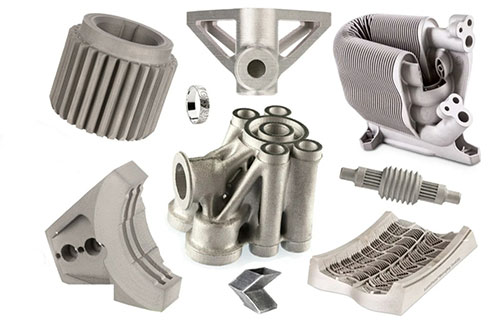
You’ve seen the mesmerizing time-lapse videos: a printer head dances silently, and a solid object emerges from nothing. But what’s really happening inside that machine? For every perfect print showcased online, there are countless failed attempts—warped bases, spaghetti-like tangles, or layers that just won’t stick.
Key takeaways
- The journey begins long before the printer heats up. A flawless digital blueprint is non-negotiable.
- Choosing a material is like selecting a construction material for a project. You wouldn’t build a boat out of cardboard.
- This is the most hands-on stage and the foundation of print quality. A perfectly sliced file will fail on a poorly calibrated machine.
- Hitting “Print” is not a “set it and forget it” moment. Active monitoring, especially of the first layer, is the habit of a professional.
Stage 1: Blueprint Perfection – Is Your 3D Model Truly Printable?
The journey begins long before the printer heats up. A flawless digital blueprint is non-negotiable. Think of your 3D model file as the architectural drawing for a skyscraper; a single error in the plans dooms the entire build.
How Do You Create or Source a Printable Model?
You have two main paths: creation or curation.
- Path 1: Design It Yourself. Using CAD (Computer-Aided Design) software, you can create custom parts. For beginners, Tinkercad (browser-based, intuitive) is ideal. For engineers and advanced makers, Fusion 360 or SolidWorks offer powerful parametric design tools. The critical rule: always design with manufacturability in mind. Avoid unsupported overhangs greater than 45 degrees and ensure wall thicknesses are sufficient for your printer’s capability.
- Path 2: Download a Pre-Made Model. Platforms like Thingiverse, Printables, and MyMiniFactory are treasure troves. However, not all downloaded models are print-ready. Always check the model’s description and user comments for known printing issues.
Pro Tip from a Product Engineer: I once spent 8 hours troubleshooting a print failure, only to discover the downloaded “cool gear bearing” model had non-manifold edges—a digital flaw where surfaces don’t properly connect. The slicer interpreted it incorrectly, creating garbled instructions.
What Are “Non-Manifold” Errors and How Do You Fix Them?
This is the most common digital file pitfall. A “manifold” (or watertight) model is like a sealed balloon; it has a clear inside and outside. Non-manifold errors include gaps in the mesh, overlapping faces, or inverted normals (surfaces facing the wrong way).
| Error Type | What It Looks Like | How to Fix It |
|---|---|---|
| Holes/Gaps | The model appears to have missing surfaces. | Use Meshmixer’s “Inspector” tool (auto-repair) or Netfabb. |
| Overlapping/Intersecting Faces | Internal geometry crosses itself. | “Merge” vertices in Blender or use the “Fix” function in Windows 3D Builder. |
| Non-Manifold Edges | An edge is shared by more than two faces. | Remesh the model using Meshlab or enable “Mesh Repair” in your slicer. |
Actionable Workflow: Before slicing, run every model—even paid, professional ones—through a checker. PrusaSlicer’s right-click “Fix through Netfabb” or Ultimaker Cura’s “Marketplace -> Mesh Tools” are excellent, integrated solutions.
Stage 2: The Digital Slicer – How Does Your 3D Model Become Machine Code?
Your printer doesn’t understand a 3D shape. It only understands precise, sequential commands: “move here, extrude this much plastic, move there.” The slicer software is the translator that performs this critical conversion.
What Exactly Does a Slicer Do?
The slicer literally “slices” your 3D model into hundreds or thousands of horizontal 2D layers. For each layer, it generates G-code—the universal machine language that controls every motor, heater, and extruder movement with millimeter precision.
Which Slicer Settings Are Non-Negotiable for Success?
Diving into a slicer’s settings can be overwhelming. Focus on these four pillars first:
- Layer Height: This dictates print resolution and speed. A 0.2mm layer height is the standard sweet spot. Go to 0.1mm for ultra-smooth miniatures (but double your print time). Use 0.3mm for fast, rough drafts.
- Infill Density & Pattern: This is the internal structure. 15-20% with a gyroid or cubic pattern is perfect for most general prints, balancing strength and material use. For functional parts, bump it to 40-80%.
- Support Structures: These are sacrificial scaffolds for overhangs. Use “touching buildplate only” to minimize damage to your model’s surface. For resin printing, support placement is an art—anchor points must be carefully positioned to hold the model without scarring it.
- Print Speed & Temperature: These are a tandem setting. Default to the filament manufacturer’s recommended temperature. Print speed is typically 50-60 mm/s for PLA on a hobbyist printer. Slow down the first layer to 20 mm/s for exceptional adhesion.
Comparative Slicing Strategy: A Vase vs. a Drone Motor Mount
| Setting | Decorative Vase (PLA) | Functional Motor Mount (PETG/Nylon) |
|---|---|---|
| Layer Height | 0.15mm (for smooth visual appeal) | 0.2mm (optimal strength-to-speed ratio) |
| Wall Count/Perimeters | 3 (for water-tightness) | 5+ (for rigidity under vibration) |
| Infill | 0% (printed in “vase mode”/spiralize) | 60%, Hexagonal Pattern (maximum stiffness) |
| Supports | Off (if designed as a true vase) | Possibly On (for complex mounting flanges) |
| Print Temp | 205°C | 235°C (PETG) or 260°C (Nylon) |
Stage 3: Material Matters – Are You Using the Right “Ink”?
Choosing a material is like selecting a construction material for a project. You wouldn’t build a boat out of cardboard. Material choice is dictated by your printer type (FDM vs. SLA) and the part’s functional requirements.
FDM Filaments: A Practical Guide to the Big Three
- PLA (Polylactic Acid): The universal starter filament. It prints easily at 190-220°C, has minimal warping, and is available in endless colors. Best for: Concept models, display pieces, low-stress household items. Weakness: Low heat resistance (softens around 60°C) and poor impact strength.
- PETG (Polyethylene Terephthalate Glycol): The “Goldilocks” engineering plastic. It offers excellent layer adhesion, chemical resistance, and durability, printing at 230-250°C. It’s more flexible than PLA and is great for functional parts, mechanical assemblies, and outdoor use. Key Challenge: It can be “stringy”; requires dialed-in retraction settings.
- ABS (Acrylonitrile Butadiene Styrene): The legacy tough material. Known for strength, heat resistance, and smooth finish when vapor-polished. It requires a heated bed (100-110°C) and an enclosed chamber to prevent warping from cooling drafts. Best for: Automotive parts, enclosures, items needing acetone smoothing.
Case Study: The Failed Tool Handle. A maker printed a wrench handle in PLA. It snapped under moderate torque. The solution wasn’t more infill; it was a material change. Reprinting in PETG or ABS provided the necessary toughness and flex resistance for the application.
Stage 4: Machine Calibration – Is Your Printer Physically Ready?
This is the most hands-on stage and the foundation of print quality. A perfectly sliced file will fail on a poorly calibrated machine.
What Are the Foundational Calibrations?
- Bed Leveling (The #1 Priority): The distance between the nozzle and the build plate must be consistent across the entire surface—within a fraction of a layer height. Modern methods include: Manual Paper Test: The classic. You feel a slight drag on a piece of paper under the nozzle at multiple points. Automatic Bed Leveling (ABL): A probe (BLTouch, CR-Touch) measures the plate’s topography. The printer then compensates for any warp during the print. ABL is not a substitute for a mechanically level bed; it compensates for minor imperfections.
- Extruder Calibration (E-Steps): This ensures when your printer is commanded to extrude 100mm of filament, it actually pushes exactly 100mm. An uncalibrated extruder leads to under-extrusion (weak, gappy prints) or over-extrusion (blobby, dimensionally inaccurate parts). Formula: New E-Step Value = (Old E-Step Value * Commanded Length) / Measured Length
- First Layer Squish: This is the visual test. Your first layer should be a smooth, slightly squished ribbon of plastic. Individual lines should be fused together without gaps. If you see round, separate strands, the nozzle is too high. If the plastic is translucent and scraped thin, it’s too low.
Stage 5: The Printing Process – What Should You Watch For?
Hitting “Print” is not a “set it and forget it” moment. Active monitoring, especially of the first layer, is the habit of a professional.
What Are the Key Monitoring Checkpoints?
- First 5 Layers: Watch for consistent adhesion and line width. Any peeling (warping) or skipping here means you must stop and recalibrate.
- Mid-Print: Listen for unusual noises (clicks from a clogged extruder, grinding from a skipped step). Check that supports are being generated correctly.
- Bridging & Overhangs: Observe how the printer handles spans without support below. Small, clean bridges indicate good cooling and speed settings.
Example of Proactive Intervention: You notice a small corner of your large print beginning to lift (warp) from the bed. Immediately pausing and applying a small dot of thin CA (super) glue under the lifted edge can re-adhere it and save a 10-hour print from total failure.
How to write a spec that gets priced correctly
A drawing is a contract. If it leaves a number open, the shop fills that number in with its own default. The default is rarely the one you had in mind. Put these five lines on every RFQ and most of the back-and-forth disappears before it starts.
- File format and units, with the model exported in millimetres
- Process and material grade, not a trade name
- Critical features and the tolerance each one needs
- Surface finish and the faces it applies to
- Quantity for the pilot build and for the year
The point is not paperwork. Each line removes a decision the shop would otherwise make for you. A complete RFQ comes back priced. An incomplete one comes back guessed.
What actually drives the price
Buyers usually push on material because it is the line they can see. In practice the material is rarely the biggest number on a quote. These five lines decide most of it:
- build volume and orientation
- layer height and support structure
- material grade and colour
- post-processing and hand finishing
- quantity per build plate
Ask for the quote split by line. A supplier who cannot break it down is guessing, and you will pay for the guess. The line you can usually renegotiate is the tolerance band, not the raw material.
Problems you will meet, and the fix
Every process has a failure mode it prefers. The same four show up again and again on this kind of work, and none of them are mysteries once you know what to look for.
- Warping on long flat faces where the part lifts off the plate
- Layer lines showing through a cosmetic surface
- Support scars on a mating face nobody flagged
- Dimensional drift on thin walls after cooling
Catch the fault on the first part, not the hundredth. A first-article check costs an hour. A bad batch costs the whole order. Write the check into the purchase order so nobody has to remember it.
What to check on the first article
The first article is the cheapest inspection you will ever buy. Use it properly and the rest of the run becomes boring, which is exactly what you want.
- Every dimension on the drawing, with the measured value written beside it.
- The material certificate, matched to the heat or lot number on the parts.
- The finish against the sample you approved, under the same light.
- Fit against the mating part, assembled rather than measured.
- Packaging, because parts that arrive damaged were never in tolerance.
Check in this order: datums, then mating features, then cosmetic faces. If the datums are wrong, every number after them is noise. Keep the report on file. When a problem shows up in month six, that document is the only thing that tells you what changed.
How to compare two quotes fairly
Two numbers are not comparable unless the scope matches. Line them up before you decide, because a low number with three gaps is not a low number.
Same drawing, same material, same finish, same inspection. Anything else is a different job wearing the same part number. Then look at what each quote leaves out. Freight, packaging, certificates and tooling are the usual gaps.
Ask each supplier to state their assumptions in writing. The one who does is usually the one who has run the process before.
Scaling from one part to a batch
The first part teaches you the process. The hundredth teaches you the process cost.
Watch three things as volume grows: setup amortisation, tool wear, and how much hand work the finish still needs. If the unit price barely moves between ten and a hundred, the cost sits in material or in hand work, not in setup. Ask which, because only one of them is negotiable.
Lead time behaves the same way. A one-off is scheduled around other jobs. A repeat order is scheduled around your forecast. Give the shop a forecast and the lead time gets shorter, not longer.
How to read a supplier's quote
A quote is a short document with a long shadow. Four things in it decide whether the job runs smoothly, and only one of them is the price.
- The scope line. It should name the process, the material and the finish, not just the part.
- The tolerance basis. General tolerance or the drawing, and which standard it follows.
- The exclusions. Tooling, freight, certificates and inspection are the usual omissions.
- The validity date. Material prices move, and an open-ended quote is a promise nobody can keep.
Read the exclusions before you read the total. A quote that leaves out tooling is not cheaper. It is a quote for a different job.
Stage 6: Post-Processing – How Do You Go From Good to Great?
The printer stopping is the halfway point. Post-processing elevates a raw print into a finished product.
What’s Your Post-Printing Workflow?
For FDM Prints:
- Support Removal: Use flush cutters and needle-nose pliers. For stubborn internal supports, support interface settings in your slicer can make them easier to remove.
- Sanding & Smoothing: Start with coarse grit (120) to remove major blobs or support scars, then progress to fine grit (400+). For ABS, vapor smoothing with acetone creates a glossy, professional finish.
- Painting & Finishing: Use a filler primer to hide layer lines. Acrylic paints work perfectly. Seal with a clear matte or gloss coat.
For Resin (SLA/DLP) Prints:
- Wash: Agitate in 99% isopropyl alcohol (IPA) in a wash-and-cure station to remove uncured resin.
- Cure: Post-cure under 405nm UV light for 5-15 minutes to achieve final mechanical properties. This step is mandatory for safety and strength.
Understanding how a 3D printer works demystifies the technology and empowers you to become a master operator, not just a button-pusher. The process is a chain: a watertight 3D model feeds into a precisely configured slicer, which guides a well-calibrated machine using the appropriate material, all under attentive supervision, culminating in intentional post-processing. Weakness in any link causes failure. By internalizing this end-to-end workflow—from digital design thinking to physical finishing techniques—you transform from hoping for a successful print to engineering one. This systematic knowledge is what separates frustrating hobbyist experiments from reliable, professional results.
Our solution for 3D Printers
YiguProto runs 3D printing in house, from a single prototype to a production batch. We quote the process, the material and the finish as separate lines, so you can see where the money goes instead of arguing with one number.
Send a STEP file or a drawing and you get a DFM report in one to two business days. It flags the features that add cost and the features that will not hold tolerance on the process you picked.
Every order ships with an inspection report on the features you call out. If a part misses, we make it again. Ready to price a part? Start with a free quote and DFM review, or read more about our 3D printing. You can also talk to an engineer before you commit to a drawing.
FAQ about 3D Printers
What is 3D Printers used for?
3D Printers turns up wherever the part has to do a real job at a predictable cost: brackets, housings, fixtures, covers and the fittings that hold them together. The honest test is whether the properties match the load and the environment, not whether the material is fashionable.
What files do you need in order to quote?
A STEP file plus a PDF drawing that carries the same revision letter. The model carries the geometry and the drawing carries the intent. When the two disagree, the shop picks one, and it is never the one you meant.
How do I compare two quotes fairly?
Match the scope first: same drawing, same material, same finish, same inspection. Then read the exclusions. Freight, tooling and certificates are the usual gaps, and a low number with three gaps is not a low number.
What is the lead time for 3D Printers?
Expect 2 to 5 business days for a first batch. Tooling, material stock and the finishing queue all move that number, so we confirm the date in writing before the run starts rather than after.
What should I check before approving the parts?
Datums first, then the features that mate, then the cosmetic faces. Ask for a dimensional report, a material certificate and a finish sample. A part can be inside every tolerance and still not fit, so assemble one before you sign.
How much does 3D Printers cost?
Price comes from five lines: material, machine or tool time, setup, finishing and inspection. The material itself is usually the smallest of them. Send a drawing and we will split the quote so you can see which line is doing the damage.
The short version
3D Printers rewards the buyer who reads the data sheet and the drawing together. Pick the option for the property that matters, not for the price per kilo.
Tighten only what mates. Test a sample before the run. Then let the process do the rest.